
WORDPRESS / MIGRATION / SEO
How to Migrate Blogger to WordPress Without Losing SEO (2026 Checklist)
Learn how to migrate Blogger to WordPress safely in 2026. Step-by-step export, import, URL redirects, image checks, Search Console and a free URL-mapping worksheet.
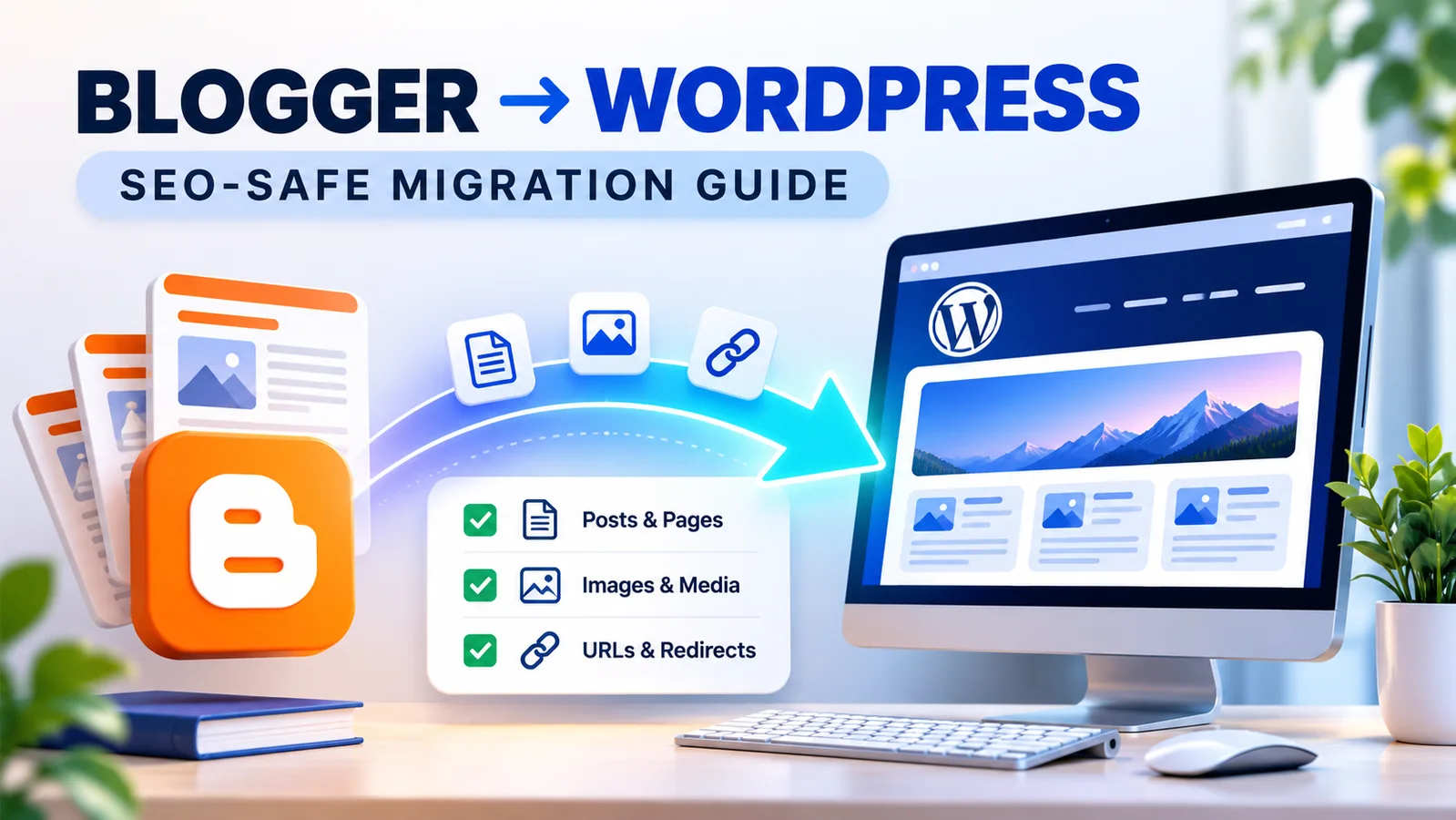
Moving from Blogger to self-hosted WordPress is more than exporting a file and clicking Import. A safe migration preserves the things readers and search engines already know about your blog: individual article URLs, images, publication dates, internal links, and the relationship between old pages and new ones. This guide walks through those details with a worked example and a downloadable URL-mapping worksheet.
THE SHORT VERSION
How to migrate Blogger to WordPress without losing track of your SEO
- Record your baseline: export URLs, top search pages, backlinks, indexed pages and key analytics.
- Back up Blogger: download content, theme and any media you cannot afford to lose.
- Build WordPress on staging: choose permalinks and HTTPS before importing.
- Import a compatible file: confirm whether your Blogger export is XML or Atom, then use a matching importer.
- Audit every important page: posts, images, authors, comments, dates, headings and links.
- Preserve URL paths or map redirects: prioritize the pages already getting traffic and backlinks.
- Launch, test, and monitor: verify real HTTP statuses, submit the sitemap and watch Google Search Console.
Important: No migration can guarantee unchanged Google rankings. Search visibility can fluctuate as Google recrawls the moved pages. The goal is to minimize avoidable loss and make the move easy to understand for users and search engines.
1. Before you start: identify which migration you’re doing
The most important early decision is whether your Blogger site uses a Blogspot address or a domain you own. The content import process is broadly similar, but URL preservation and redirect control are not.
| Starting point | What changes | SEO consideration |
|---|---|---|
yourblog.blogspot.com | Content moves to a new domain such as example.com. | You do not control Blogspot’s web server. Do not assume WordPress redirect rules can issue HTTP 301s for old Blogspot URLs. |
www.example.com configured in Blogger | You can move hosting to WordPress and keep the same domain. | Where feasible, preserve each old path exactly; otherwise configure 301 redirects on the new hosting environment. |
For an established blog using its own domain, keeping that domain and matching its post URLs is often simpler than changing the domain, URL structure and design all at once. Google recommends separating major site changes when possible. Read Google’s site-move guidance.
Build a baseline before touching DNS
Open Google Search Console for the current site and record the last three months of performance. Export the pages receiving the most clicks and impressions; these deserve first priority during your URL audit. Save your sitemap, a list of major backlinks, Analytics reports, and an inventory of existing posts and static pages.
- Content: post titles, original URLs, publication dates, categories or Blogger labels, authors, static pages and comments.
- SEO: top landing pages, page titles, descriptions where available, indexed URLs and canonical destinations.
- Media: image URLs, featured images, downloadable files and embedded videos.
- Site functions: forms, subscriptions, newsletter feeds, search, custom scripts and any advertisement placements you need to rebuild.
2. Export and back up your Blogger site
In Blogger, choose the correct blog, open Settings → Manage blog → Back up content, and download the export. Blogger also supports downloading blog data using Google Takeout. Keep the original export untouched and save at least one extra copy. Next open Theme → Backup and save the template separately; a content export is not a full copy of your site’s visual layout. Google’s Blogger backup instructions explain both routes.
Look at the actual export format before importing. Older workflows and some Blogger backups use an .xml file. Google Takeout may provide an Atom feed, typically feed.atom inside the archive. These are not interchangeable just because you rename their extensions. Save the downloaded ZIP as well as the extracted file, and inspect a sample of its posts and comments.
3. Prepare your WordPress destination first
Set up WordPress on a staging domain or a protected temporary URL. Install an SSL certificate, configure a backup solution, choose a lightweight theme and check that your WordPress users have the right permissions. Use a password-protected staging site rather than publishing duplicate copies to Google.
Under Settings → Permalinks, plan the URL structure before importing. Blogger’s typical post paths include a year, month and .html suffix. WordPress can be configured to resemble that pattern using a custom structure such as:
/%year%/%monthnum%/%postname%.htmlThis is an option, not a universal setting. Whether it produces an exact match depends on the imported publication date and slug, and Blogger pages such as /p/contact.html need separate treatment. If your new structure will be shorter, document the old-to-new mapping instead of hoping Google finds every page on its own.
Also check that the staging site has the right timezone, site language, comment settings, WordPress user assignments and image-upload limits. Do not combine the migration with a full content rewrite until the move is validated.
4. Import Blogger posts and pages into WordPress
For a compatible Blogger XML export, WordPress documents a built-in path: open Tools → Import → Blogger, install the Blogger importer if prompted, select Run Importer, then upload the supported XML file. See the WordPress importing handbook.
If the file is a newer feed.atom export or the standard importer rejects your file, stop and choose an importer that explicitly supports that format. For example, the Feed Importer for Blogger plugin advertises Atom support, page imports and media handling. These are the plugin author’s claims; test the tool on staging and review its current compatibility and security before using it for a production migration. Don’t rename feed.atom to something.xml and assume it becomes a compatible export.
Verify the import instead of trusting a success message
Count the entries on both sides. Open several short and long posts, older entries, posts with images, posts with code or custom HTML, and posts containing comments. Check every important detail:
- Publication dates and slugs: a changed date or slug can change an otherwise matching WordPress permalink.
- Paragraphs and headings: look for missing formatting, duplicated titles, escaped HTML or broken tables.
- Authors and comments: confirm that imported records are assigned correctly and comment counts make sense.
- Pages and labels: verify that About, Contact and policy pages exist, and decide how Blogger labels should map to WordPress categories or tags.
- Media: open actual image URLs, not only thumbnails visible in the editor.
If an import times out, inspect what WordPress created before trying again. Restarting the same import blindly can create duplicate posts. The WordPress handbook warns that partial imports can leave existing data behind.
5. Build a URL map: the highest-impact SEO step
Search engines index URLs, not simply post titles. A Blogger article named “Beginner Camera Guide” might have the path /2022/08/beginner-camera-guide.html; after import, WordPress might produce /beginner-camera-guide/. Without a working mapping, a user following an old backlink could reach a 404.
| Old Blogger URL (example) | WordPress destination | Action |
|---|---|---|
www.example.com/2022/08/camera-guide.html | www.example.com/2022/08/camera-guide.html | Same custom domain and exact path: confirm the new page returns HTTP 200. |
www.example.com/2022/08/camera-guide.html | www.example.com/guides/camera-guide/ | Configure an exact server-side 301 from the old path to the new one. |
www.example.com/p/contact.html | www.example.com/contact/ | Map the Blogger static page to its corresponding WordPress page. |
exampleblog.blogspot.com/2022/08/camera-guide.html | www.example.com/guides/camera-guide/ | Verify a supported old-host redirect method; the WordPress web server cannot redirect requests it never receives. |
Download the CSV template and replace the example rows with your real Blogger and WordPress URLs. It includes priority, redirect status and notes columns.
When an Apache 301 rule is appropriate
For an old path on a domain whose requests now reach your Apache web server, a rule may look like the following. This is an illustrative rule, not something to paste into a Blogspot theme:
Redirect 301 /2022/08/old-camera-guide.html https://www.example.com/guides/camera-guide/On WordPress hosting, you may instead use the redirect feature of an established SEO/redirect plugin, or the server’s own routing. Choose one redirect manager and verify that it doesn’t conflict with other rules.
For Blogspot-to-new-domain moves: Blogger has a Settings → Errors and redirects → Custom redirects feature, but its behavior and permitted destinations should be checked for your exact old URLs and target domain. You cannot install Apache redirects on a blogspot.com host you do not control. If permanent server-side redirects are unavailable, Google’s site-move guidance discusses client-side redirects as a last resort; they are not the same as a 301 response.
Test HTTP status and destination, not just the browser appearance
A successful move should usually produce one of these outcomes: an unchanged URL gives a 200 on the correct WordPress page, or an old URL gives a 301/308 pointing directly to the correct new page, which then returns 200. A redirect to an unrelated homepage is not a substitute for a relevant page match.
curl -I https://www.example.com/2022/08/old-camera-guide.html
curl -IL https://www.example.com/2022/08/old-camera-guide.html
The first command checks the initial response. The second follows redirects so you can inspect the chain. If the old address returns 200 but displays irrelevant content, or returns 404, fix the mapping before treating that URL as migrated. Google recommends permanent redirects where possible and discourages unnecessary chains. Google’s redirect documentation covers the rationale.
6. Move images, media and internal links—not just text
Some Blogger imports leave images referencing their original Google-hosted URLs. They may appear fine today but still depend on another platform. Audit the imported HTML and Media Library: where appropriate, download or rehost the images, update src references, and verify that each image loads from its intended location.
For a meaningful sample—especially your top-performing posts—check:
- Does the main article image load at desktop and mobile sizes?
- Does WordPress have a usable featured image for blog listings and social shares?
- Do captions and descriptive alt attributes still make sense?
- Do article links point to the corresponding new WordPress pages rather than an obsolete Blogger address?
- Do PDF downloads, embedded videos and external scripts still function?
For very large imports, use a staged batch workflow, keep backups and avoid aggressive search-and-replace operations without first reviewing what they will modify. Confirm that image optimization does not unexpectedly change file paths or break responsive image URLs.
7. Go live, then validate Search Console and analytics
Once WordPress content is audited, the URL map is reviewed and you have a rollback plan, schedule the cutover. For a custom-domain Blogger site, point the required DNS records to your WordPress hosting only after WordPress is ready to serve the real domain over HTTPS. DNS changes by themselves are not HTTP redirects; the new server must also return the correct pages.
- Confirm the domain and HTTPS certificate are working.
- Remove staging-only access restrictions and any unintended
noindexfrom the production pages. - Verify the final page URL, self-referencing canonical and internal links for major posts.
- Check the homepage, several posts, static pages, category archives and the XML sitemap.
- Test the highest-priority old URLs for exact status code and final destination.
- Submit the new sitemap in Google Search Console and inspect important URLs.
- Check GA4 tracking and forms on the new website.
- Monitor impressions, clicks, indexed-page reports and 404 logs over the following weeks.
Google’s Change of Address tool is relevant when you are moving to a different domain or subdomain; it is not needed merely to change hosting while keeping the same domain. Google’s documentation recommends maintaining redirects for at least one year where possible, and longer for the benefit of returning visitors.
8. Printable Blogger-to-WordPress migration checklist
Use this list as a handoff document for a developer or site owner. A migration is ready for sign-off only when the important items are independently verified.
Before import
- □ Content and theme backups stored in two locations
- □ Top search landing pages and backlink URLs exported
- □ Current post/page counts and important media recorded
- □ WordPress staging site and backup/rollback plan prepared
- □ Import file format identified: XML or Atom
Before cutover
- □ Posts, pages, dates, comments and authors sampled and verified
- □ WordPress permalinks and Blogger URL mapping approved
- □ Important images, embedded media and internal links tested
- □ Redirect behavior tested for the actual old hostname
- □ Production HTTPS and analytics ready
After launch
- □ Top URLs return expected 200 or permanent redirect response
- □ No major pages unintentionally have noindex or incorrect canonical
- □ New sitemap submitted and important URLs inspected
- □ Broken links and missing images reviewed
- □ Search performance compared after 7, 30 and 90 days
9. Troubleshooting common migration problems
The importer doesn’t recognize my Blogger export
Check whether the export is Blogger XML or a Google Takeout feed.atom file. Use an importer that explicitly supports the actual format. Test with a small site or staging copy before running a large import; renaming the extension does not fix incompatible data structures.
Posts imported, but some images are broken
Inspect the HTML image URLs. They may still point to Blogger-hosted resources, inaccessible sources or URLs that changed during import. Download missing assets from backups where possible and update their references deliberately.
Blog posts have different URLs than before
Compare the original Blogger publication date, slug and path to the WordPress permalink. Either align the WordPress URL where practical, or add a one-to-one permanent redirect on the server that receives requests to the old domain.
Google still shows old URLs
Google must crawl the moved URLs and discover the new versions; that takes time. Confirm redirects, canonical URLs, sitemap coverage and crawl access instead of repeatedly changing every page. Use Search Console’s URL Inspection tool for high-priority examples.
Imported content appears twice
A failed or repeated import may have created partial duplicates. Audit titles, slugs, imported IDs and dates before deleting anything, and restore from staging backup if needed.
Frequently asked questions
Will migrating from Blogger to WordPress hurt SEO?
Not necessarily, but no responsible migration can promise zero ranking changes. Preserving URLs, using correct redirects, maintaining content and monitoring Search Console reduce avoidable disruption.
Can I keep my Blogger post URLs in WordPress?
Often yes for a custom-domain blog, if WordPress is configured to reproduce the same year/month/slug paths and dates. Blogspot-hosted URLs remain on Google’s domain, so moving to a new domain is a different case that needs a verified redirection strategy.
Does the Blogger export include all my images?
Do not assume so. Imported content can contain external image references. Inspect and migrate critical assets, then verify the final image URLs and featured images.
Do I need an SEO plugin to migrate?
An SEO plugin can help manage titles, canonical tags, sitemaps and sometimes redirects, but the plugin doesn’t replace URL mapping, media checks or status-code verification.
How long before Google updates the results?
It varies by blog size, crawl patterns and the complexity of the move. Google’s documentation notes that small and medium site moves can take weeks; do not judge success from only the first day.
Should I delete my old Blogger site immediately after importing?
No. Keep source backups and the old site available until the migration is validated, taking care that old and new URLs are not competing as two independent public copies.
NEED HELP WITH A REAL MIGRATION?
Keep the content. Protect the URLs. Move with a plan.
If your blog has years of content, important search rankings or complicated URL patterns, a staged migration and redirect audit can save significant cleanup work. BitwiseCode offers a dedicated Blogger-to-WordPress migration service for businesses and established publishers.
Official references and further reading
- Google Blogger Help: Back up or import your blog
- WordPress Developer Handbook: Importing content
- Google Search Central: Site moves with URL changes
- Google Search Central: Redirects and Google Search
Reviewed November 2026. Blogger export formats, WordPress importer compatibility and plugin features may change; always test the workflow using your own export.