
WORDPRESS / AI / WOOCOMMERCE
How to Add an AI Chatbot to WordPress: FAQs, Leads & WooCommerce (2026)
Learn how to add an AI chatbot to WordPress for FAQs, consent-based leads and WooCommerce product search. Includes real plugin screenshots, secure API setup and a testing checklist.
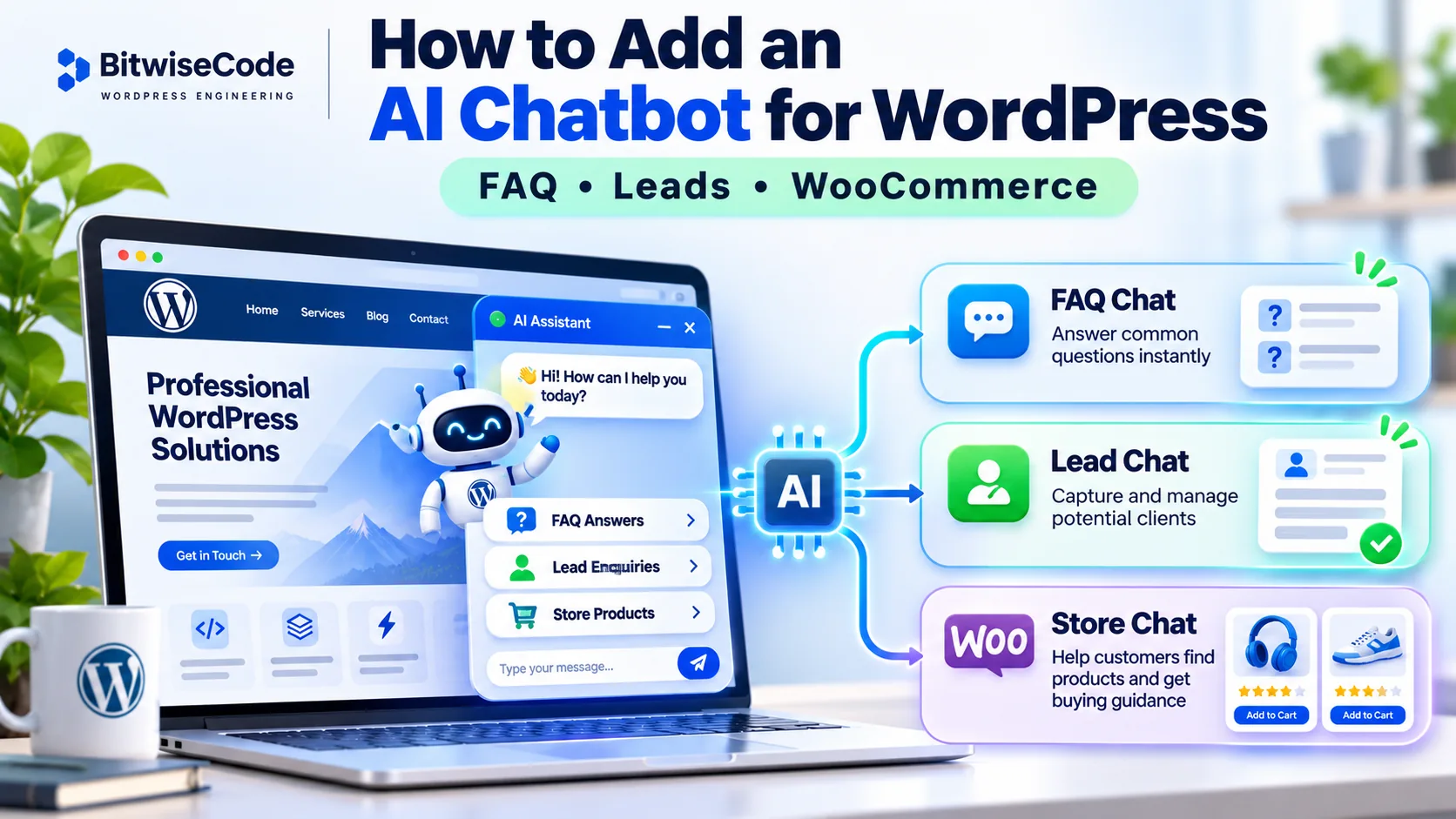
Want to add an AI chatbot to WordPress that answers business questions, collects enquiries or helps shoppers find products? You don’t need to rebuild your website. The important part is choosing the right chatbot job, providing accurate knowledge, protecting API credentials, and testing how it behaves when a visitor asks something it doesn’t know.
This step-by-step guide covers WordPress FAQ chatbots, AI lead-capture assistants and WooCommerce product chatbots. It uses three actual independently developed WordPress plugins as concrete engineering examples. They are in-house BitwiseCode products, not evidence of a client deployment or of improved sales. The screenshots below come from a Store Chat test installation; some integrations in that installation are not yet configured.
QUICK ANSWER / 2026
How to add an AI chatbot to your WordPress website
- Choose the purpose: common FAQs, qualified enquiries, or product discovery.
- Select a suitable WordPress chatbot plugin and install its supported ZIP under Plugins → Add New → Upload Plugin, or install a vetted WordPress.org plugin.
- Configure the AI provider in the plugin admin dashboard. Keep the API key on the server; never place it in frontend JavaScript.
- Add verified business knowledge—services, hours, policies, FAQs or published product information.
- Customize the widget for your theme, brand and mobile layout.
- Test real questions, unknown answers, lead consent and product URLs before enabling it for visitors.
- Monitor use, errors, privacy and provider costs after launch.
A chatbot can be useful without being allowed to change orders, access private customer data, or promise facts the business hasn’t supplied.
1. Which AI chatbot should you add to WordPress?
Start with what the visitor actually wants. A brochure website typically needs reliable service answers and a contact route. An agency may benefit from guided lead qualification. A WooCommerce shop benefits more from product discovery and links to verified products than from a bot that gives vague shopping advice.
| Use case | Useful behavior | Avoid |
|---|---|---|
| FAQ chatbot | Answers questions using approved business descriptions and FAQs; hands uncertain requests to a human. | Making up pricing, availability or policies. |
| Lead assistant | Guides visitors toward a useful enquiry; collects only essential data with consent. | Collecting sensitive details or silently passing contact data to third parties. |
| WooCommerce chatbot | Finds real, published and visible products; links to the correct product pages. | Invented product links or unapproved cart, payment or stock changes. |
For example, consider a service agency receiving “Do you work with Elementor?” and “How much for a redesign?” The first question can often be answered from a verified FAQ. The second may require an enquiry because the price depends on scope. A trustworthy bot should know that distinction.
BitwiseCode has developed three independent WordPress examples: Jobayer AI FAQ Chat (up to 10 FAQs), Jobayer AI Lead Chat (up to 30 FAQs with consent-based leads), and Jobayer AI Store Chat (up to 50 FAQs, WooCommerce discovery and optional more advanced features). They are separate plugins; you do not need all three to run one chatbot. The source is organized as an independent-plugin monorepo, with separate packaging and settings.
The FAQ plugin is intentionally lightweight—it is not a product-search, CRM or RAG plugin. The Lead plugin handles enquiries. The Store plugin supports WooCommerce product discovery and optional advanced modules. Do not install every plugin just to unlock features you don’t need.
2. Prepare WordPress and install a chatbot plugin
Before installation, check WordPress/PHP compatibility, HTTPS, hosting outbound requests, and whether the website already runs a caching or security plugin that could block chat API calls. The BitwiseCode plugin sources currently specify WordPress 6.4+ and PHP 8.1+; Store Chat additionally needs the PHP mbstring extension and active WooCommerce for product suggestions. Other plugins have their own requirements.
- Back up the website, especially before deploying a custom plugin to production.
- Download a trusted standalone installable ZIP for the selected chatbot. For the in-house examples, the monorepo’s Build independent WordPress plugin ZIPs GitHub Actions workflow produces three separate plugin archives. Access to those artifacts depends on repository permissions.
- Open WordPress Admin → Plugins → Add New → Upload Plugin. Select the inner installable ZIP, install, and activate.
- Open its newly created settings menu, such as Settings → AI FAQ Chat, AI Lead Chat → Settings, or AI Store Chat → Settings.
- Check that the settings load without PHP notices or JavaScript errors. Complete configuration before turning the widget on publicly.
Do not upload an entire three-plugin GitHub monorepo as if it were one WordPress plugin. Each folder is an independent plugin with its own activation, settings and release lifecycle. An incompatible ZIP structure is a common reason for the “plugin could not be found” installation error.
3. Connect OpenAI, Claude or Gemini—without exposing the API key
AI chat requires a provider connection for model-generated replies. The FAQ plugin supports OpenAI, Anthropic Claude and Google Gemini, while the in-house Store Chat documentation describes an OpenAI connection for its general AI/FAQ responses. Provider support varies by plugin version; check the actual settings screen rather than assuming every chatbot supports every model.
Example: configure an OpenAI-backed FAQ assistant
- Create a provider API key in the provider’s developer console. This is generally billed separately from a ChatGPT subscription.
- Go to the chatbot plugin’s AI Connection or equivalent administrator-only settings tab.
- Paste the secret key into the password field, select a supported model, and save.
- Use the plugin’s Test Connection button. A successful test verifies connectivity or model access, not that every customer question will be answered correctly.
- Set provider spending limits/alerts and test what happens if the key becomes invalid, the API times out or the account reaches a quota limit.
In an ideal flow, the visitor’s browser sends a limited message to a WordPress endpoint, the server validates and rate-limits the request, adds only approved business knowledge, sends it to the AI provider, and returns a plain-text answer. Treat the visitor’s prompt and any retrieved webpage text as untrusted input.
→
→
→
4. Add accurate FAQs and a safe fallback
The biggest improvement usually comes from well-written business knowledge, not from an elaborate model setting. Prepare a short description of the business and a list of questions customers genuinely ask. Each answer should be something your team would confidently put on your website.
“We build WordPress websites and customize WooCommerce stores. We offer theme development, API integration and troubleshooting. Project pricing depends on requirements and is confirmed after reviewing the scope.”
Q: Can you redesign an existing WordPress site?
A: Yes. We review the current website, content and editing requirements before recommending a redesign approach.
Q: What is the fixed price for a 20-page store?
A: We provide an estimate after reviewing the page designs, product catalog, checkout, shipping and integrations. Contact us with the requirements.
“I don’t have verified information about that yet. Please contact the team so they can confirm it.”
Do not enter fake opening hours, guaranteed delivery times or product stock information. For an AI FAQ bot, a safe “I don’t know” response is often more valuable than a polished but incorrect answer.
In the current in-house FAQ Chat plugin, exact approved FAQ matches may be answered without an external model call. Paraphrased and contextual questions use the selected provider and grounded-answer checks. The plugin includes multilingual interfaces in English, Bangla, Spanish, French, German and Arabic, with administrator-provided translations where available. A multilingual interface does not mean every business fact has been professionally translated—review important details in each enabled language.
5. Turn the chatbot into a consent-based lead assistant
Lead capture should happen when a visitor wants follow-up, not at the beginning of every conversation. A useful website assistant may first ask what the visitor is trying to achieve, answer simple questions and then offer an enquiry form if personal help is needed.
Visitor: I need help connecting WooCommerce to my CRM.
Assistant: Is this for new customer enquiries, existing orders or both?
Visitor: New customer enquiries.
Assistant: I can help the team assess that. Would you like to send your contact details and a short project description?
Lead fields: Name, email, optional phone, project notes, and an unchecked consent box. The lead is saved only after valid submission and explicit agreement.
The BitwiseCode Lead Chat implementation has a guided enquiry journey, up to 30 FAQs, administrator-only saved leads and CSV export, configurable retention and optional CRM features. The actual data flow should be documented: where enquiries are stored, what is sent to an AI provider, whether HubSpot receives a copy, and how a person can request deletion.
For example, the site’s privacy notice may need to explain that visitor questions are processed by a selected model provider, while a consented contact enquiry is stored in WordPress and optionally synchronized to a configured CRM. Don’t automatically send a lead to a CRM before reviewing the visitor’s consent and your legal obligations.
Developer example: lead submission payload (illustrative shape, with dummy values; not an instruction to post to an unrelated website):
{
  "name": "Example Customer",
  "email": "customer@example.com",
  "message": "Please review our WooCommerce CRM workflow.",
  "consent": true
}
Validate consent and required fields on the server. Add rate limits, anti-abuse checks and permission checks to administrative exports. A public REST route can accept enquiries, but must never return saved private leads to anonymous visitors. WordPress nonces protect certain request contexts; they are not a substitute for real authorization or robust anti-bot protection.
6. Add a WooCommerce chatbot for real product recommendations
For ecommerce, start with a read-only assistant that finds products and helps customers navigate. Example questions include “Do you have blue running shoes?”, “Show backpacks under $100,” or “Where can I read your return policy?” Product names and links should come from WooCommerce—not from invented AI responses.
In the in-house AI Store Chat plugin, product discovery uses bounded searches over published, visible WooCommerce products and can return links to actual product pages. It is not a checkout engine: general chat does not create orders, edit stock, process payments or issue refunds. Optional authenticated order-status assistance is separate from public product search and is disabled by default.
Visitor: Show me lightweight backpacks under $80.
Assistant: Here are matching products currently listed by the store. Select a product to view its latest price and details.
Important: The example does not guarantee which products exist. A real implementation must query the store, filter by current prices/visibility and only display verified matches. If no item matches, the chatbot should say so rather than invent a product.
WooCommerce’s developer documentation recommends wc_get_products() and WC_Product_Query as reliable product APIs. The public Store API Products endpoint exposes published products for storefront use. A production chatbot must also check catalog visibility and account permissions before displaying any results.
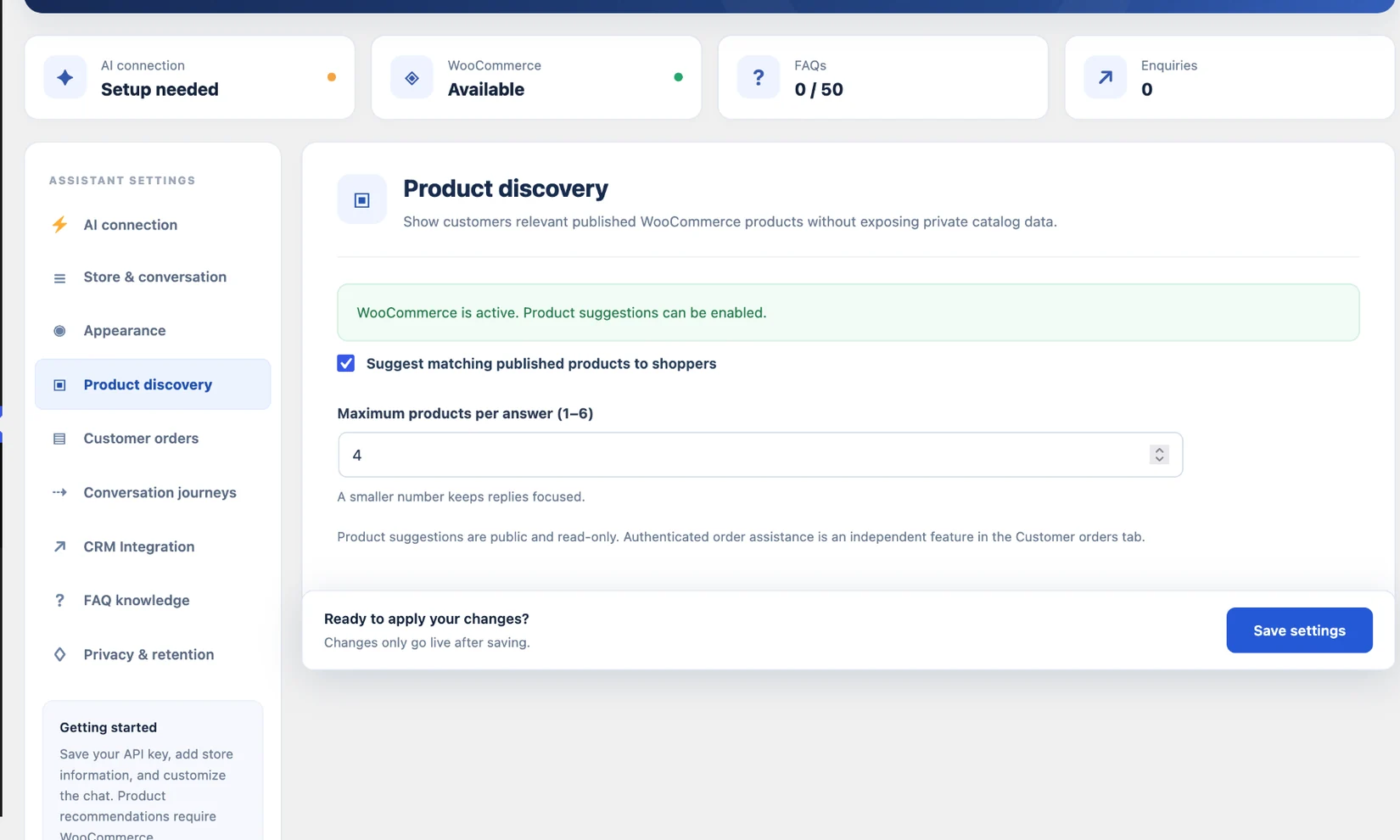
Optional advanced features: knowledge base, CRM and customer orders
The current Store Chat source also documents additional optional capabilities: a curated public-page knowledge index (RAG), a HubSpot lead-sync workflow and authenticated read-only order assistance. These features are separate from basic product discovery and may be off by default.
- Curated knowledge: an administrator selects public WordPress pages/posts for optional indexing. The current design does not ingest arbitrary external websites, private orders or PDFs into that index.
- CRM integration: consented enquiries may be queued to HubSpot if configured. Saving a local lead is not proof a remote CRM successfully accepted it.
- Order assistance: when enabled, the signed-in customer can request their own order status. Identity and ownership checks must happen server-side, and private order data must not be sent to the AI model.
Any feature using external model calls or embeddings may incur API costs. Turn on advanced features only after confirming the data flow, permissions and operational requirements.
7. Customize the chatbot’s appearance and visitor experience
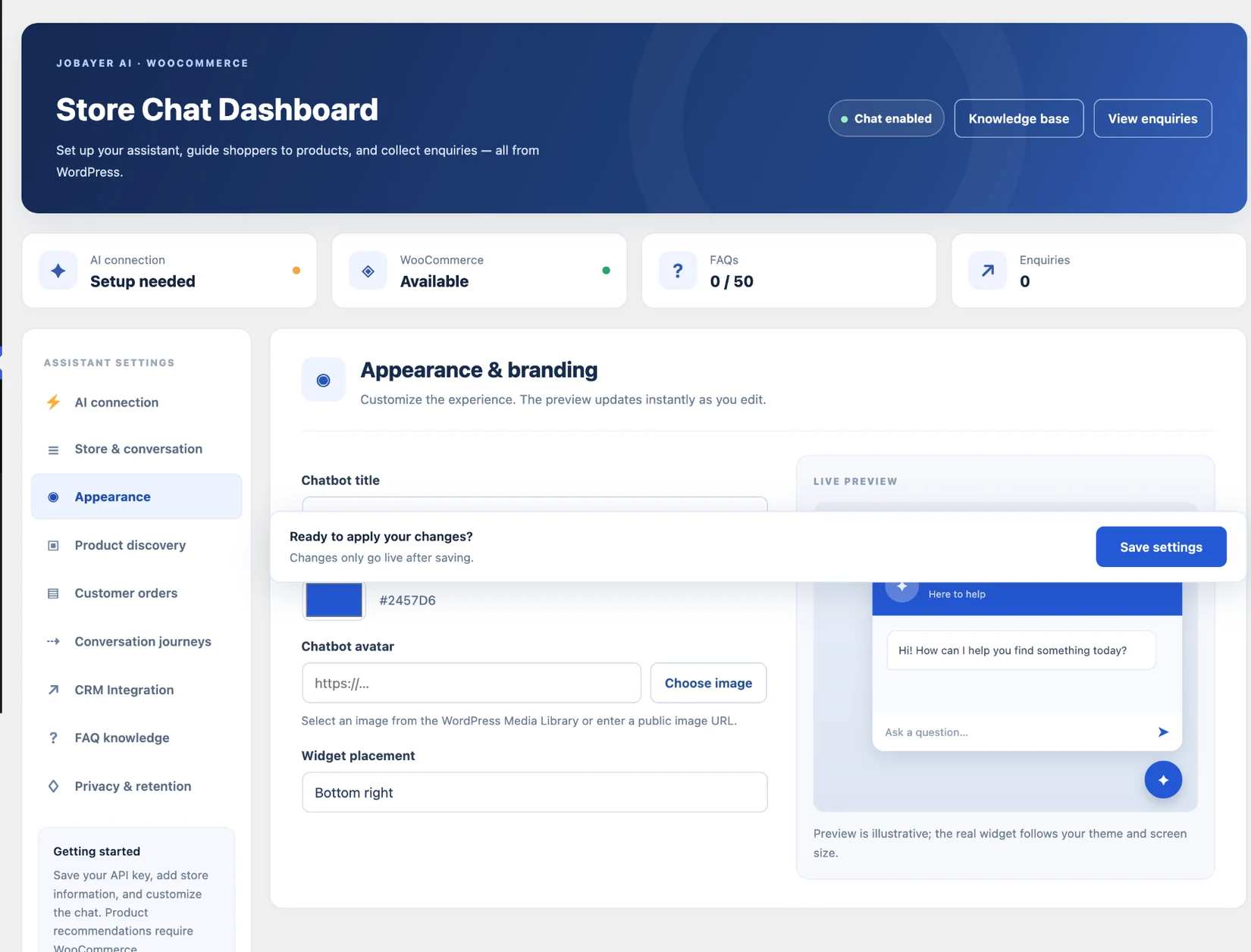
A functional chatbot can still feel intrusive if it occupies half the screen, opens automatically or clashes with the theme. Choose a clear title such as “Ask our team,” set a helpful welcome message, use a legible accent colour and test the launcher against sticky mobile navigation and cookie notices.
Consider a few carefully chosen suggested questions rather than forcing users to type everything. Make it possible to dismiss the widget and move keyboard focus through the interface. Don’t display fake “live support agents available” messages when there is no human operator.
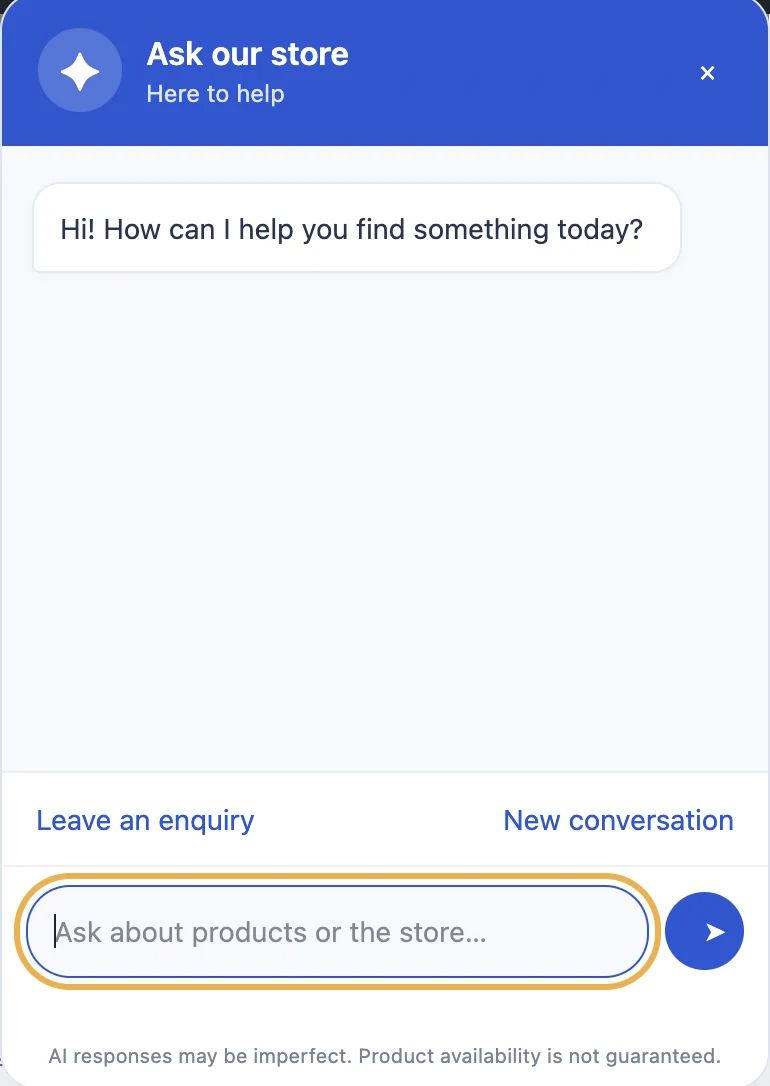
For a mobile site, test at around 320–390px widths, with the device keyboard open. Verify the launcher remains visible, the message input can be reached and the widget does not trap focus. Add descriptive labels and a visible focus outline for interactive elements.
8. Plan API costs, data privacy and maintenance
Some chatbot plugins have no upfront license fee, but an external AI provider may charge by model/token usage. Others charge a monthly subscription or include provider costs in a plan. Hosting, support, retention, CRM subscriptions, embedding/indexing and content maintenance can also affect cost.
Before launch, estimate monthly questions and average message lengths. Choose a suitable model, set spend limits, and measure response time. An exact FAQ match answered locally can avoid model calls, while conversations that include long histories or large retrieved documents tend to cost more.
| Risk | Recommended protection |
|---|---|
| Exposed provider key | Server-only credentials, admin permissions, secure backups and key rotation. |
| Unexpected API bills | Usage limits, provider budget alerts, bounded prompts/history and rate limiting. |
| Unverified AI claims | Grounded FAQs, safe fallback, human escalation and periodic answer review. |
| Stored personal data | Explicit consent where required, clear retention, access controls and deletion workflows. |
| Private WooCommerce data | Authenticated requests, ownership checks and read-only operations. |
| Spam or bot abuse | Server-side validation and rate limits; appropriate WAF controls for high-volume sites. |
Do not assume that a ChatGPT subscription includes developer API credit. Model availability and prices change, so confirm current terms on your chosen provider’s official pricing page. If you use OpenAI, its production guidance covers server-side key handling and spending controls. A public chatbot may send visitor messages to an external provider; reflect that in your privacy notice and avoid inviting users to disclose sensitive information.
Plan approved answers, source URLs, safe fallbacks, human handoffs and the tests you’ll run before launch. Replace the illustrative rows with facts from your business.
9. Pre-launch AI chatbot testing checklist
The test is not complete when the widget opens. You need to check both successful and failing conversations, and whether the visitor’s contact information is actually handled correctly.
| Test | Expected behavior |
|---|---|
| Ask a known business FAQ | Accurate reply consistent with approved business text. |
| Ask the same question differently | Correct contextual answer or a safe clarification. |
| Ask about a service never offered | Honest “not confirmed” response and human contact option. |
| Remove/expire the AI API key | Graceful error; secret and stack trace never shown publicly. |
| Submit a lead without consent | Server rejects storage/transmission. |
| Submit a valid test lead | Exactly one saved record and appropriate alert/CRM status. |
| Search for a nonexistent product | No invented product or URL. |
| Unpublish or hide a matching product | That product disappears from public recommendations. |
| Ask for another customer’s order | Unauthorized access denied; no private data in model request. |
| Open on mobile and keyboard-only | Inputs, close action, focus, scrolling and messages remain usable. |
Launch sign-off
- □ Correct WordPress, PHP and plugin versions confirmed
- □ Business description and FAQ answers approved
- □ API key stays out of HTML, JavaScript and logs
- □ Unknown questions fall back safely
- □ Lead consent is unchecked by default and enforced on server
- □ Product links match real published WooCommerce products
- □ Mobile widget, keyboard access and close behavior tested
- □ Privacy notice, retention, provider processing and budgets reviewed
- □ Errors and support/human handoff work
- □ A scheduled content and plugin maintenance process is agreed
10. Common WordPress AI chatbot problems
The chatbot opens but does not answer
Check whether the AI key is saved, the selected provider/model is available and the server can make outbound HTTPS requests. A 401 often suggests authentication trouble; 429 can indicate a rate or quota limit. Check safe server logs and provider response codes without writing credentials or chat personal data to logs.
It keeps inventing prices, policies or products
Reduce the permitted answer scope and explicitly supply approved business knowledge. Prefer authoritative WooCommerce product records for names, URLs and current prices. Require a fallback for unsupported facts. If the plugin offers grounding or a curated knowledge base, test that retrieval does not expose private or unrelated content.
The chat widget is missing on mobile
Inspect its enable flag, active theme styles, caching, JavaScript conflicts, viewport z-index and floating launcher placement. Test an uncached browser session and look for console errors before changing server configuration.
Lead capture worked but no CRM contact was created
Local WordPress storage and remote CRM synchronization are separate steps. Check whether the CRM is enabled, credentials/scopes are valid, consent permits sharing, the queue is running and the delivery record was accepted. WordPress Cron may run late on low-traffic sites unless backed by a real scheduler.
Customer order queries show an authorization error
That’s preferable to revealing a private order. Confirm the customer is signed in, the route’s nonce/session checks are correct and the order belongs to that user. Do not remove ownership checks to make the feature “work.”
Frequently asked questions
Can I add an AI chatbot to WordPress without writing code?
Yes. Many plugins provide a WordPress dashboard interface for provider credentials, FAQs and branding. Custom needs such as advanced WooCommerce workflows or secure CRM integrations may still require development and testing.
Do I need ChatGPT Plus to use a WordPress AI chatbot?
Not necessarily. Plugins that use OpenAI’s developer API typically need a separate API key and API billing. Other providers or plugin subscriptions have their own pricing and policies.
Can an AI chatbot answer in multiple languages?
Some can. The in-house FAQ example supports English, Bangla, Spanish, French, German and Arabic interfaces. Verify business facts and translations in each supported language; multilingual support does not make answers automatically accurate.
Can a WordPress chatbot capture leads?
Yes, when the plugin includes a properly validated form and lead storage or integrations. Use clear consent, retain only needed fields and verify access controls and export/delete functions.
Can it recommend WooCommerce products and check orders?
A WooCommerce-aware chatbot can return live product links if integrated with published catalog data. Authenticated order status is a separate security-sensitive capability that should only be enabled with real identity and order-ownership checks. Never let a public bot reveal private orders.
Is a simple FAQ chatbot better than RAG?
For a small, stable set of questions, curated FAQs are easier to maintain and verify. A carefully scoped retrieval system can help with a larger public knowledge base, but introduces indexing, privacy, freshness and cost considerations.
Do AI chatbots guarantee more sales?
No. Better access to information may help visitors, but results depend on traffic, the products or services, answer quality and the broader conversion funnel. Measure actual enquiries and completed goals, not just chatbot message counts.
NEED A CHATBOT BUILT FOR YOUR WORDPRESS WEBSITE?
Start with a real business problem—not a generic chatbot widget.
BitwiseCode develops WordPress AI automation, guided enquiry assistants and WooCommerce integrations. This article includes actual WordPress screenshots from our in-house chatbot development project. Share your requirements for a tailored implementation.
Official developer references
- WordPress — REST API authentication and nonces
- WooCommerce — Product query API
- WooCommerce — Public Store API products
- OpenAI — Protecting API keys
- OpenAI — Production best practices
Reviewed November 2026. Examples draw on the versioned Jobayer AI Chatbots plugin source and official platform documentation. Feature availability varies by plugin release. The screenshots are from a test installation, and no completed client conversion or live AI conversation is implied.